 TIBBL
TIBBLSetup guide
From antenna to every screen in the house
You need an HDHomeRun tuner with an antenna, a Mac or Windows PC that stays on at home, and a TIBBL account. Most of the setup is waiting for the tuner’s channel scan.
Install the recorder
The recorder is a small free program that talks to your tuner, records on schedule and sends video to your screens. Put it on a computer that stays on at home and has room for recordings.
- 1Make an account at app.tibbl.tv if you don’t have one. The Remote and Full plans start with 30 days free.
- 2Download the recorder for Mac or Windows from our download section.
- 3Mac: open the .dmg and drag TIBBL to Applications. It is signed and notarized by Apple, so it opens normally. Windows: run the installer. If SmartScreen appears, click More info, then Run anyway.
- 4Start it. TIBBL lives in the menu bar on a Mac and in the system tray on Windows; click its icon to open its window.
Run the recorder on one computer only. A second copy records to its own disk, and your recordings end up split between the two.
Sign in and find your tuner
- 1Connect the antenna to your HDHomeRun and the HDHomeRun to your router, then let it finish its channel scan.
- 2When the recorder starts for the first time, it asks you to sign in. Use the same TIBBL account you will use on your TV and phone.
- 3It looks for HDHomeRun tuners on your network by itself. There is no address to type. Its window shows each tuner and what it is doing.
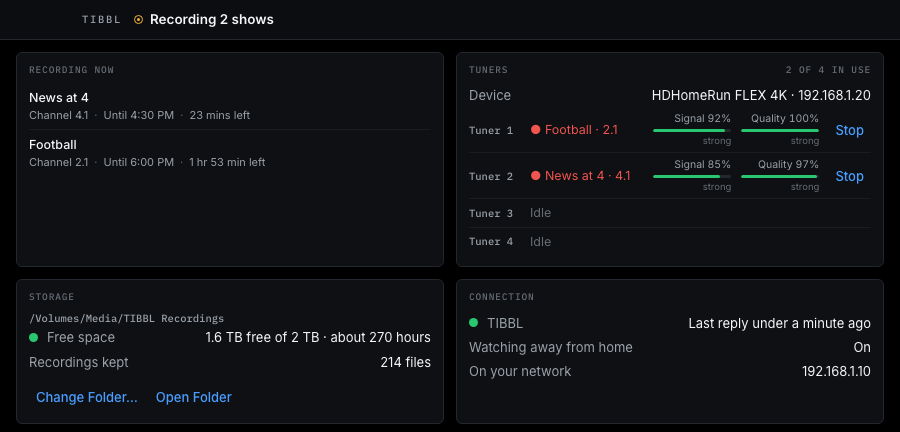
On a Mac, allow TIBBL when macOS asks about finding devices on your local network. If you said no, turn it on in System Settings › Privacy & Security › Local Network.
Choose your recordings folder
TIBBL picks a recordings folder for you when it first starts. To use another one, such as a bigger external drive:
- 1Click the TIBBL icon in the menu bar or tray to open its window.
- 2Open Recordings and choose Change Recording Folder…
- 3Pick the folder. New recordings go there from then on.
The folder can only be changed on the recorder’s own computer, never from the web app. If your recordings are on an external drive, keep it connected: if the folder can’t be reached, TIBBL tells you and asks you to choose it again.
Already have video files? Where the recorder shows Library Folders, add those folders and they appear in your library next to your recordings.
Guide and channels
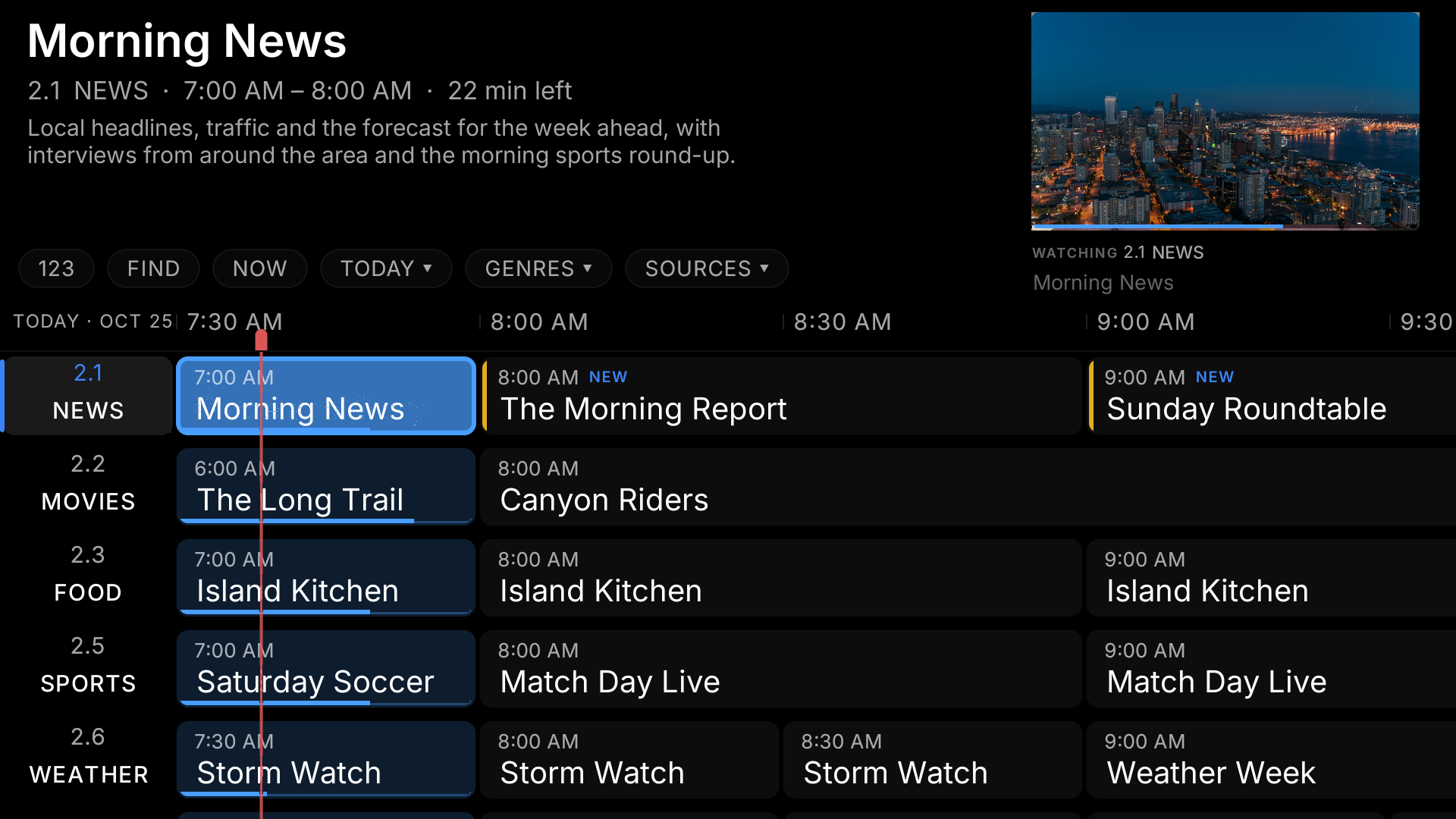
Your channels come from the HDHomeRun’s own scan, so there is nothing to add for antenna TV. The guide fills in about a minute after the first setup.
- How far ahead. The Home and Remote plans use your HDHomeRun’s own listings, about two days ahead. The Full plan adds about five days of licensed listings with cast and ratings.
- Your own playlists. In the web app, open Command Center › Sources to add an M3U playlist. Its channels join the same guide.
- Tidy it up. In the web app’s guide, mark channels as favourites and hide the ones you never watch.
Record a show or a series
- 1Find the program in the guide and select it. On the TV, press Select; in the web app or on your phone, tap it.
- 2Choose Record for this showing or Record series for every new episode. The TV asks you to confirm before it schedules anything.
- 3In the web app, the next step is Save as: choose the folder, check the name, and add the season and episode if the guide didn’t have them. It shows the exact folder on your computer the recording will go into, and a preview of the artwork.
Files are named with the date, the show and, when there is one, the season and episode, for example 2026-10-25 - Saturday Soccer - S02E05 - Final Day.ts. Commercials are found automatically when a recording finishes, and that can be turned off for a single recording.
Upcoming recordings are listed under Library › Scheduled.
Watch away from home
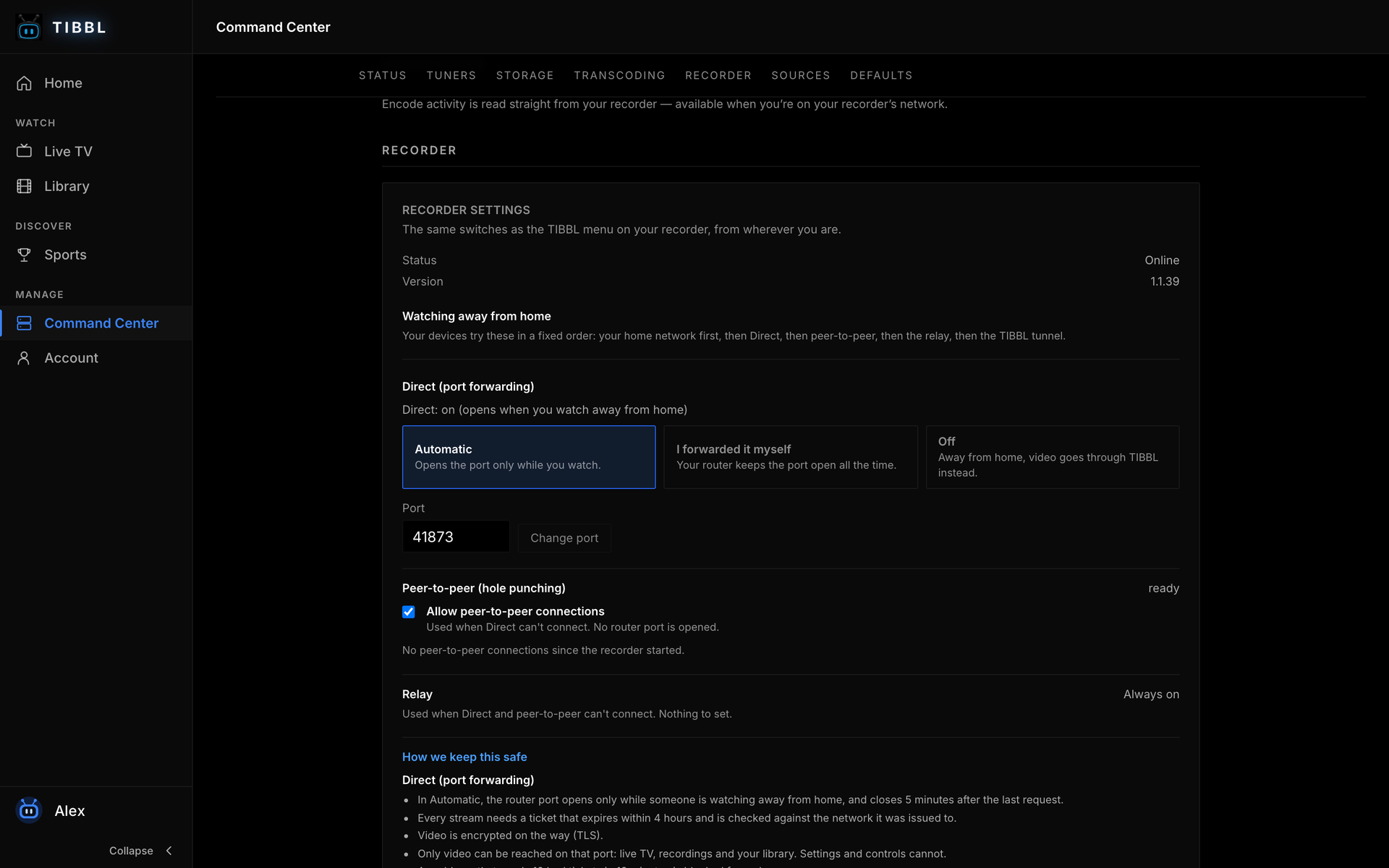
On the Remote and Full plans, open the app anywhere and it connects to your recorder by itself. There is nothing to set up. Behind the scenes it tries, in order: your home network, then Direct, then peer-to-peer, then the relay, and finally the TIBBL tunnel as the last resort.
Direct
Your phone or browser talks straight to the recorder at home. It is usually the fastest.
- In Automatic, the port on your router opens only while someone is watching away from home, and closes 5 minutes after the last request.
- Only video can be reached through it: live TV, recordings and your library. Settings and controls cannot.
- Unless you choose one, the port number is picked at random, and an address that sends 10 bad tickets in 10 minutes is blocked for an hour.
Peer-to-peer
Your device and the recorder find each other through your TIBBL account and connect without any open port. In the web app today; the TV and phone apps will get it later.
- No port is left open on your router.
- It connects only through your signed-in account, and only to your own recorder.
- The video is encrypted end to end, between your device and your recorder.
Relay
When neither of those can connect, the video goes through TIBBL's relay instead. It is always on and there is nothing to set.
- The video is encrypted on the way.
- The relay carries video only.
Whichever way it connects, every stream needs its own ticket, which expires within 4 hours and is checked against the network it was issued to.
To change it: in the web app, open Command Center › Recorder. Set Direct to Automatic (the default), “I forwarded it myself” if you opened a port on your router by hand, or Off; change the port; or turn peer-to-peer off. The same switches are under Away From Home in the recorder’s own window.
Picture quality away from home is limited by your home internet’s upload speed.
Delete recordings and fix matches
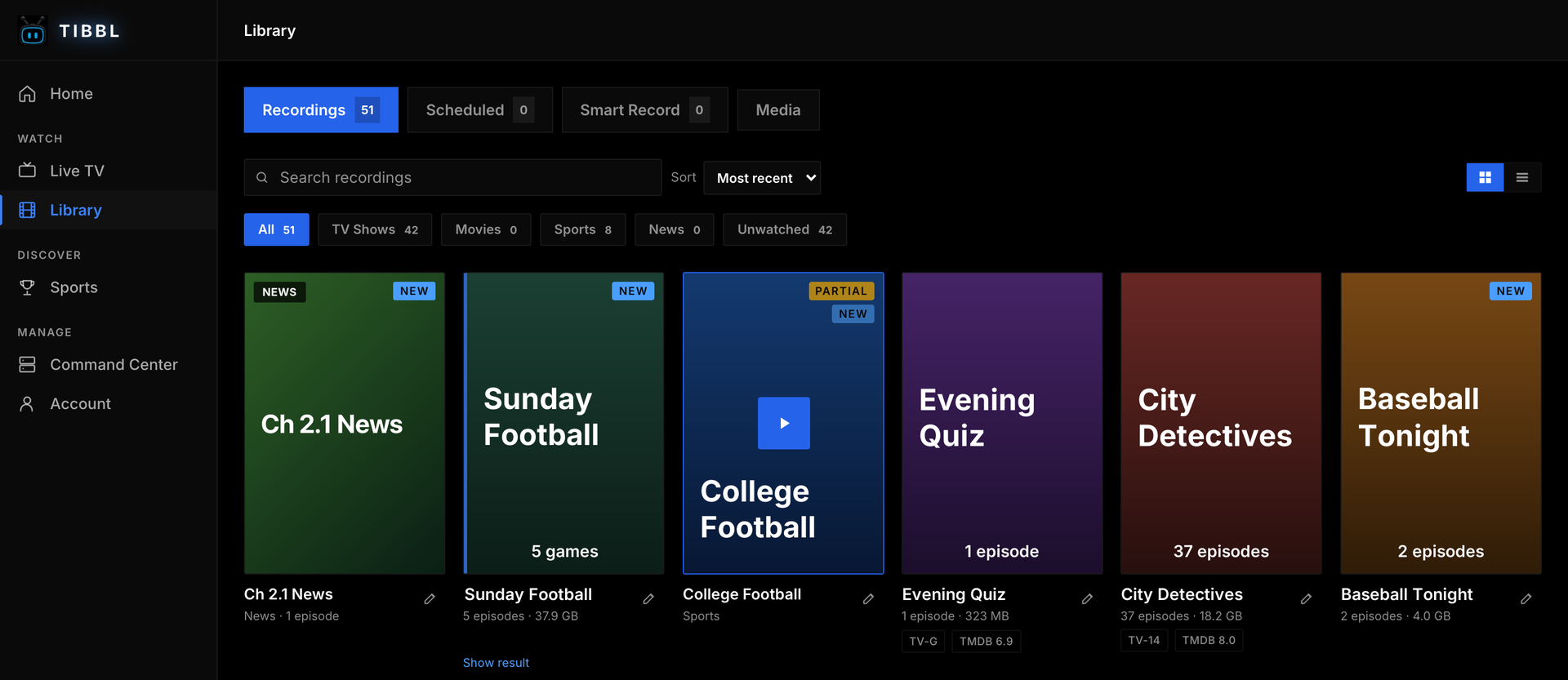
- Web app. In Library, each show has an edit button; choose Fix match… to pick the right title and artwork. To delete, open the recording and use the ⋯ menu, or delete from the show’s details.
- TV. In Library, hold Select on a show for Play, Fix match and Delete…. While a recording plays, Delete recording… is in its options.
- iPhone and iPad. Fix match is in the show’s details.
Deleting asks first, then removes the file from your recordings folder on the recorder.
Profiles
Profiles keep each person’s viewing their own inside one account. After signing in, the apps ask “Who’s watching?” when there is more than one profile.
- 1In the web app, open the profile menu and choose Manage profiles.
- 2Add a profile with a name, a colour and an avatar.
- 3Give a profile a PIN if it shouldn’t be chosen by anyone else.
The account owner’s profile is the one that manages the recorder, billing and other profiles. Other profiles can’t open those pages.
The apps
Sign in to each app with the same TIBBL account. Your channels, recordings and profiles are already there.
Web browser
Available now at app.tibbl.tv on any computer, tablet or phone. Nothing to install.
Fire TV
Coming soon to the Amazon Appstore.
iPhone and iPad
Coming soon to the App Store.
Android TV and Google TV
Coming soon to Google Play.
Roku, Apple TV and LG webOS are coming soon.
Troubleshooting
The apps say the recorder is offline
The computer running it is asleep, off, or the recorder was quit. Wake the computer or start TIBBL again; it carries on where it left off. For recordings to happen, that computer has to stay awake: set it never to sleep while plugged in.
It can't find my HDHomeRun
The tuner and the computer must be on the same home network, and the tuner needs to have finished its channel scan. On a Mac, open System Settings › Privacy & Security › Local Network and make sure TIBBL is allowed. Then choose Rescan for tuners in the recorder's window, or in Command Center › Recorder.
The guide is empty
On a new setup the guide takes about a minute to fill in. If one channel stays empty, its station may not be sending listings.
A recording didn't happen
Check that the computer was awake at the time, and look at Storage in the Command Center: a full disk stops recordings. A recording also needs a free tuner.
Away from home, the picture stutters or looks soft
Your home internet's upload speed sets the ceiling, and a phone on a weak signal can be slower than the picture. Pick a lower quality from the player's quality menu. Watching away from home needs the Remote or Full plan.
Windows warns about the installer
The Windows build is not signed yet, so SmartScreen may say it doesn't recognise the app. Click More info, then Run anyway. The Mac build is signed and notarized by Apple and opens normally.
Recordings are split between two places
Run the recorder on one computer only. A second copy signed in to the same account records to its own disk.
Still stuck? A person reads every email.